
Junwoo
2023-09-07 20:27:27
Tutorial
Creating Characters with Midjourney and Editing Fairytale Videos with VideoStew
🎓
Automated Real Estate Video Creation: How to Run a YouTube Channel Using Just Your Blog Posts
When chatting with real estate agents, we often notice a familiar pattern: blog posts are updated daily like clockwork, while their YouTube channels look like g...

🗞️
[Update] From Generating Images to Remixing and Video Creation—All in One Place!
Just double-click any image in the editor, and boom! You can now jump straight into four powerful AI actions.Create a completely fresh image based on your slide...
![[Update] From Generating Images to Remixing and Video Creation—All in One Place!](https://cdn.videostew.com/files/thumb/980c7babf-7x4chx14a)
🤔
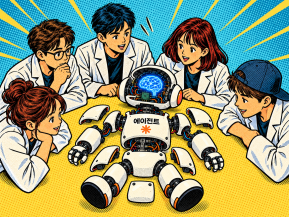
Building an AI Agent from Scratch: Let's Demystify the Magic!
In our previous post, Smart Token-Saving Hacks for AI Agents, we explored quick tips to cut down on tokens right away. This time, we’re peeling back the curtain...
🤔
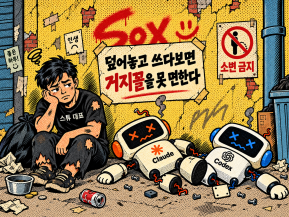
Smart Ways to Save Tokens with AI Agents (Without Losing the Magic)
Must be nice if your company covers your token bills, but for a scrappy startup like ours, token cost-efficiency (or simply surviving the invoice) is practicall...
🤔
Setting Up the Dev & Ops Environment for Our Secret Agents 🚀
At Stew, we're sharing how we set up and utilize our environment for agent-based coding (while continuously supercharging our AI video editor behind the scenes!...

🗞️
[Update] Give Stock and Uploaded Photos an AI Makeover with 'Generative Edit'
You can now refine and reuse the images you already have—no need to toss them out and start over. With the newly added 'Generate Edit' feature, the image curren...
![[Update] Give Stock and Uploaded Photos an AI Makeover with 'Generative Edit'](https://cdn.videostew.com/files/thumb/274c0ca30-7wwu05ktr)
🎓
Why You Pick a Shorts Template, Make Three Videos, Then Never Use It Again
Search for Shorts templates, and you’ll find an endless supply of free options. But after downloading one and making about three videos, many creators find them...

🎓
Automating shorts is easy—getting them consistently great every time is the real challenge
If you search for shorts automation, you’ll find endless workflow tutorials that promise everything at once: script generation, images, voiceover, even upload. ...


These days, we're seeing one or two examples of generative AI being well utilized.
We're going to explore how to use generative AI like Midjourney and VideoStew to create animated video fairytales.
First, because various solutions are used, I'll provide a general workflow.
While services that crop out background images and crop images web services appear along the way, they're not of major importance. So, just remember this three-step solution flow.
Now, let's get started.
Creating a Fairytale Script with ChatGPT
First, let's create a fairytale in chatGPT. This doesn’t require any prompt know-how and is simple enough for you to freely test and generate fairytale scripts.
Use Prompt: Make a short fairytale that can give dreams and hopes to children, with a young boy as the protagonist.
We've made a simple fairytale script. The reason why "a young boy as the protagonist" is specifically mentioned in the prompt is because it's better for using generative AI like Midjourney when there is a definite character.
Creating Characters and Background Images with Midjourney
Now it's our turn to review the script and see what characters are needed and what background elements are needed.
Firstly, we need the protagonist "Minwoo" and his monkey friend "Ruby". As for the backdrop, it seems that we'll need a variety of places like "school classroom" or "zoo".
Shall we shoot one creation prompt at a time?
Creating Drafts for Main Characters in Midjourney
The first task is to generate various poses for the main character.
Basic Prompt: [Character Description], [Style], multiple expressions and poses, character sheet, [Outfit] --ar 16:9
Example of Use: Short boy, brown hair, Korean, black eyes, pixar styled, multiple expressions and poses, front view, side view, back view, character sheet, blue jean pants, pink t-shirt --ar 16:9
The important thing here is that we need to create a character sheet that includes front view, side view, and back view. Since the characters can't always face forward to blend in with the background.
Creating Emotion Variations for Main Character
If you want to create a character variation that has a crying facial expression, a smiling facial expression, or a celebratory pose, it's important to maintain the character's consistency.
You may think that you can just add expressions or poses to the same prompt, but this can lead to completely unexpected results. So remember the reference link if you don't want to suddenly change the protagonist in your fairytale.
First, you need to separate each of the 10 characters from the character sheet that we created earlier. You can use free online crop tools like iloveimg for this. Prepare 10 separate main character image files.
The prompt used to create character variations is as follows.
[Reference link], [Character Description], [Style], expressions and poses, character sheet, [Outfit] --ar 16:9
To get the reference link, you must upload all 10 images to Midjourney. For each uploaded image, right-clicking with the mouse allows you to copy the unique image address. This means you need to copy and paste the address for all 10 images one by one. Although it's a tedious task, it's extremely important for creating variations while ensuring character consistency.
Now, we'll use the
/imaginecommand again to create a variation. In the basic prompt, instead ofmultiple expressions and poses, we're going to put in real actions or facial expressions. This time, let's try creating a character by putting injumping with smiling face.Like this, prepare the variations you need according to the fairytale script. But the images that Midjourney generates all have a background color. So now, we need to use a compositing tool to create only a PNG character image. You can simply blow off the background to transparent with a solution like remove.bg.
Creating Background Images
Once all the characters are prepared in this way, what's left is to create a backdrop. In fact, there's no big problem when writing a prompt for a backdrop as long as the style matches. However, always remember to generate it with a
first person viewso that the characters don't feel out of place standing in it.Background Prompt Example: Pixar styled, horizontal path, zoo, first person view, tiger in the cage, bright and sunny day, ice cream truck --ar 16:9
Editing Fairytale Video by Infusing All Ingredients into VideoStew
Once all the image resources are prepared, now all we have to do is dunk them into VideoStew and mix them well. First, put the script on the backdrop via Wizard Mode.
The method of using VideoStew is explained in detail in the Starting with Wizard Mode Guide Document and in the videos on the VideoStew YouTube Channel because the article is getting too long.
<iframe src="https://www.youtube.com/embed/9kZrcLaJC2g" allowfullscreen=""></iframe>