
Junwoo
2026-09-01 13:56:03
Announcement
[Update] Give Stock and Uploaded Photos an AI Makeover with 'Generative Edit'
🎓
Automated Real Estate Video Creation: How to Run a YouTube Channel Using Just Your Blog Posts
When chatting with real estate agents, we often notice a familiar pattern: blog posts are updated daily like clockwork, while their YouTube channels look like g...

🗞️
[Update] From Generating Images to Remixing and Video Creation—All in One Place!
Just double-click any image in the editor, and boom! You can now jump straight into four powerful AI actions.Create a completely fresh image based on your slide...
![[Update] From Generating Images to Remixing and Video Creation—All in One Place!](https://cdn.videostew.com/files/thumb/980c7babf-7x4chx14a)
🤔
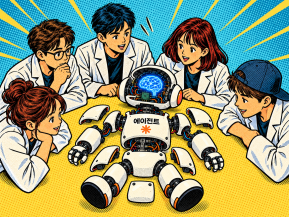
Building an AI Agent from Scratch: Let's Demystify the Magic!
In our previous post, Smart Token-Saving Hacks for AI Agents, we explored quick tips to cut down on tokens right away. This time, we’re peeling back the curtain...
🤔
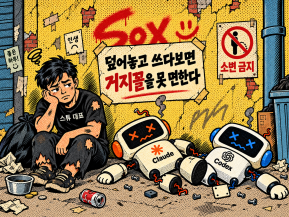
Smart Ways to Save Tokens with AI Agents (Without Losing the Magic)
Must be nice if your company covers your token bills, but for a scrappy startup like ours, token cost-efficiency (or simply surviving the invoice) is practicall...
🤔
Setting Up the Dev & Ops Environment for Our Secret Agents 🚀
At Stew, we're sharing how we set up and utilize our environment for agent-based coding (while continuously supercharging our AI video editor behind the scenes!...

🗞️
[Update] Give Stock and Uploaded Photos an AI Makeover with 'Generative Edit'
You can now refine and reuse the images you already have—no need to toss them out and start over. With the newly added 'Generate Edit' feature, the image curren...
![[Update] Give Stock and Uploaded Photos an AI Makeover with 'Generative Edit'](https://cdn.videostew.com/files/thumb/274c0ca30-7wwu05ktr)
🎓
Why You Pick a Shorts Template, Make Three Videos, Then Never Use It Again
Search for Shorts templates, and you’ll find an endless supply of free options. But after downloading one and making about three videos, many creators find them...

🎓
Automating shorts is easy—getting them consistently great every time is the real challenge
If you search for shorts automation, you’ll find endless workflow tutorials that promise everything at once: script generation, images, voiceover, even upload. ...


You can now refine and reuse the images you already have—no need to toss them out and start over. With the newly added 'Generate Edit' feature, the image currently on your canvas becomes the reference, and a new version is created with only the changes you describe.
There are two ways to use it. Double-click an image in the editor, then choose 'Generate Edit' under 'Select Action.' Or simply click the 'Edit' button in the Properties panel.
This feature isn’t just for AI-generated images. It works just as well with photos you upload and stock images, too. Change only the background, remove unwanted elements, or tune the colors to match your brand—all without leaving the editor.
Here’s the result of a one-line prompt: "Change the red poppies to blue flowers." Only the flower colors change, while the wheat field, sky, and flower placement stay exactly where they are.
Your original stays untouched
Edited results never overwrite the original. Instead, they are added to your library as a new item. If the result isn’t quite right, simply return to the original—or create several versions and compare them side by side. This is different from 'Generate with AI,' which creates an image from scratch based on text, so you can use each feature for what it does best.
You can also recreate an image with a new style
A style selector has been added to the AI image editing screen. Choose whether to keep the original style, apply one of the ready-made style presets, or use a custom style of your own.
The style selector at the top of the image Editing Window lets you choose from Original Style, Photorealistic, Digital Art, Vector, Cartoon, Newspaper Illustration, Silhouette, and Custom.
You can even regenerate an image by changing only its style—no edit prompt required. Since the original composition and subject remain intact, you can prepare multiple versions of the same scene in different visual styles. When you save a regenerated image to your library, the style selected at the time of generation is saved with it, too.
Here are four versions created from the same photo. From left to right: the original, digital art, vector, and newspaper illustration.
There’s an update when turning images into videos, too. Leave the motion description blank, and natural movement that preserves the original composition will be applied automatically.
The motion input field says “Select.” You can leave it blank and generate your video—easy as that.
Try it with content like this