Guide
Assets
You can see the list of projects you have worked on. To be precise, these are the assets in this workspace. Would you like to share the list with other team members if it's shared?
Organize with Project Folders
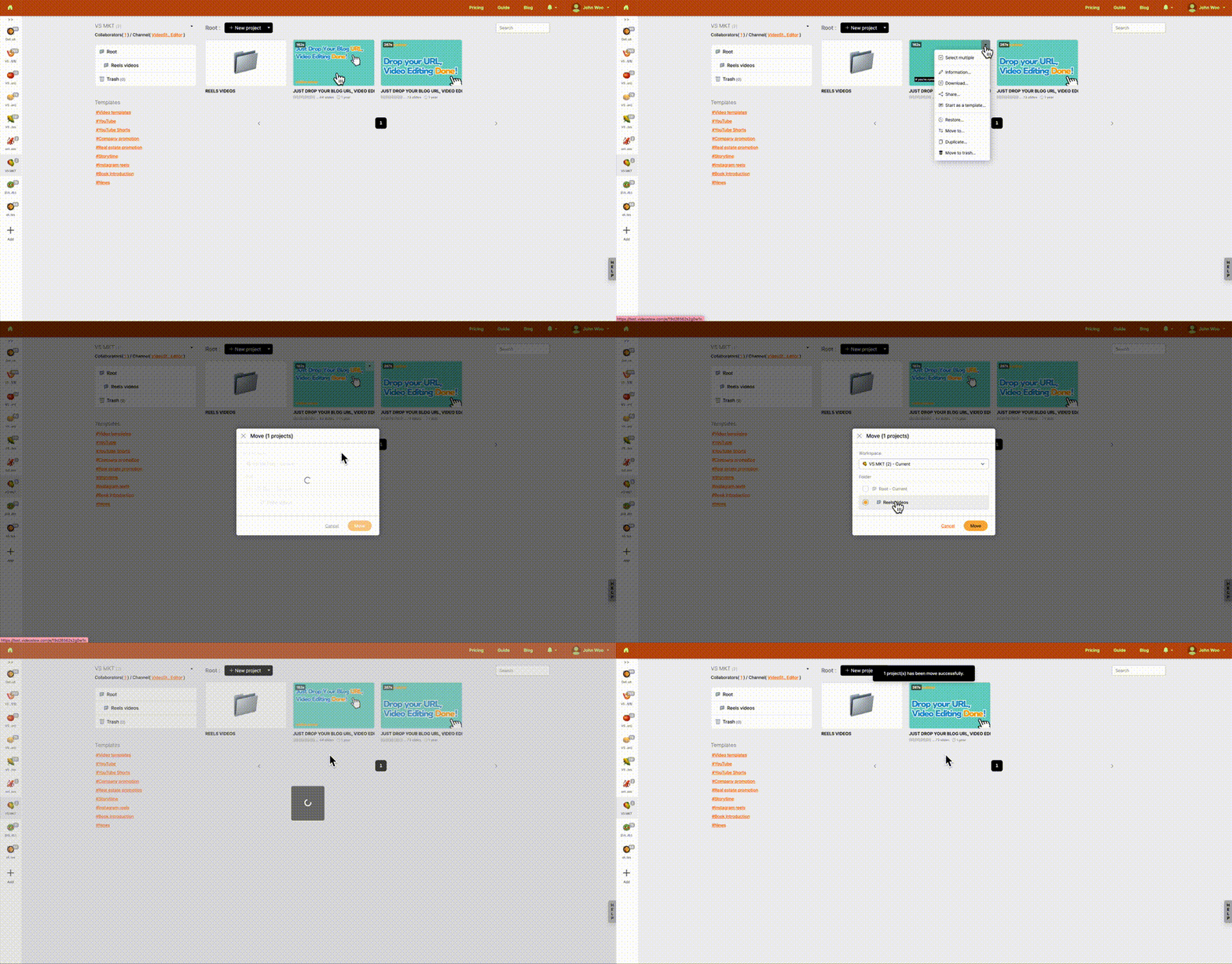
As projects accumulate, it becomes hard to tell which is a template and which is actual work—start tidying up now. Just type “Project Folder” to group workspace projects neatly and manage them like folders. (e.g., by client, by campaign, collections of favorite templates, etc.)
- On the home screen, click Workspace on the left.
- Next to the “New Project” button on the top, open the dropdown (▼) to add a folder.
- For projects already created
- Drag-and-drop with the mouse into the desired folder
- Use the Settings (▼) button of each project to move or duplicate it to another folder.
- Folders themselves can be
- Renamed
- Moved to another location
- Deleted if no longer needed.
Once organized, you can clone your “favorite templates” project whenever needed, or group projects by client, brand, or campaign so that you and your teammates can operate without mixing up each other’s work.
