Guide
YouTube upload is not working
After rendering a video in Videostew, you can upload it to YouTube with just one click. Typically, after you press the upload button, it uploads within a few minutes to YouTube Studio.

< Message indicating that the upload has started >
However, there might be issues with network conditions or account connectivity that can prevent a proper upload. In such cases, you can try to delete Videostew's access from Google account management and attempt the upload again. Please refer to the following steps.
Google account management access
Clicking the account icon in the upper right corner of the Chrome browser will take you to the Google account environment settings menu.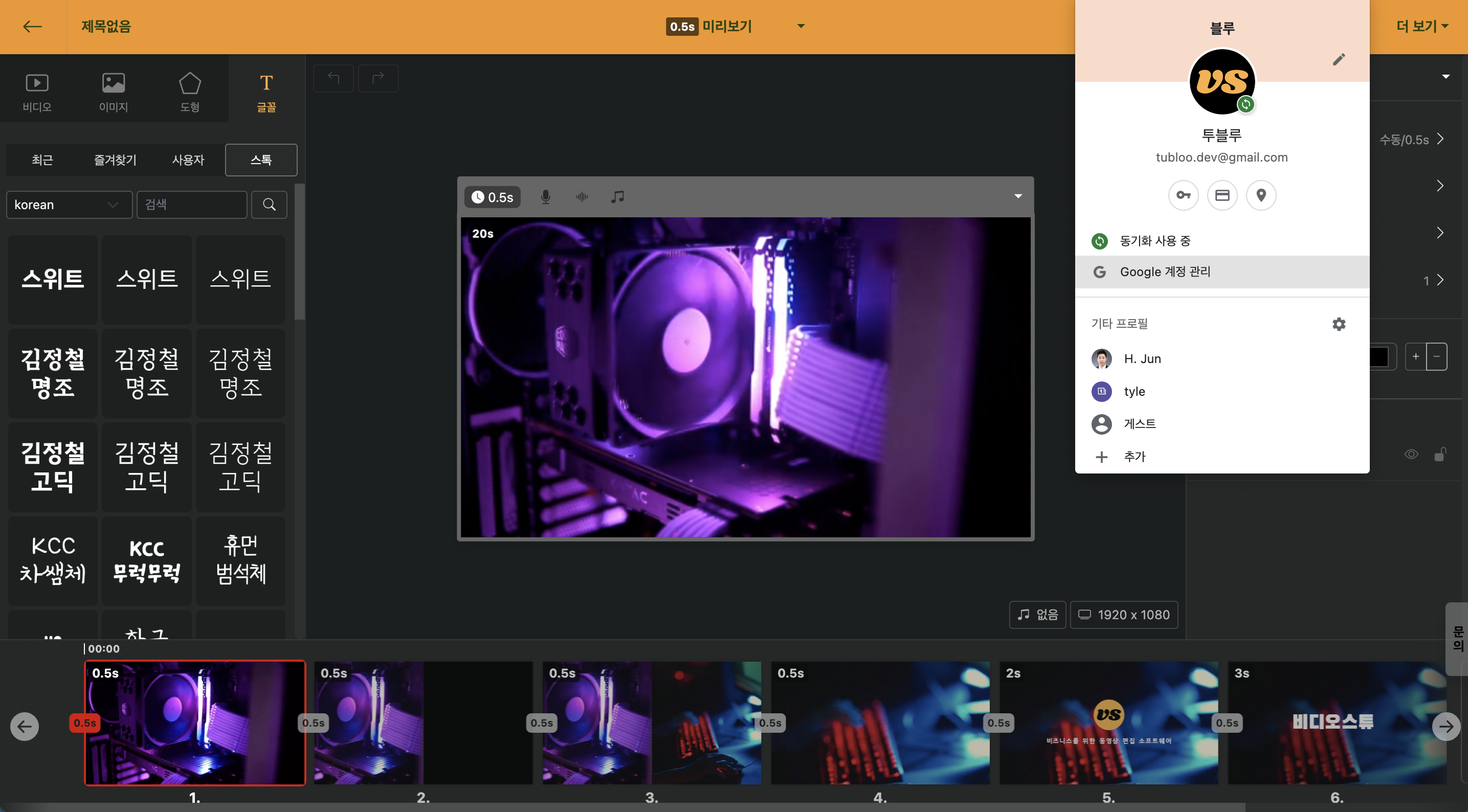
< Move to Google Account Management Menu >
Click on Data and Personal Information Protection
Here, please select the "Data and Personal Information Protection" menu on the left side.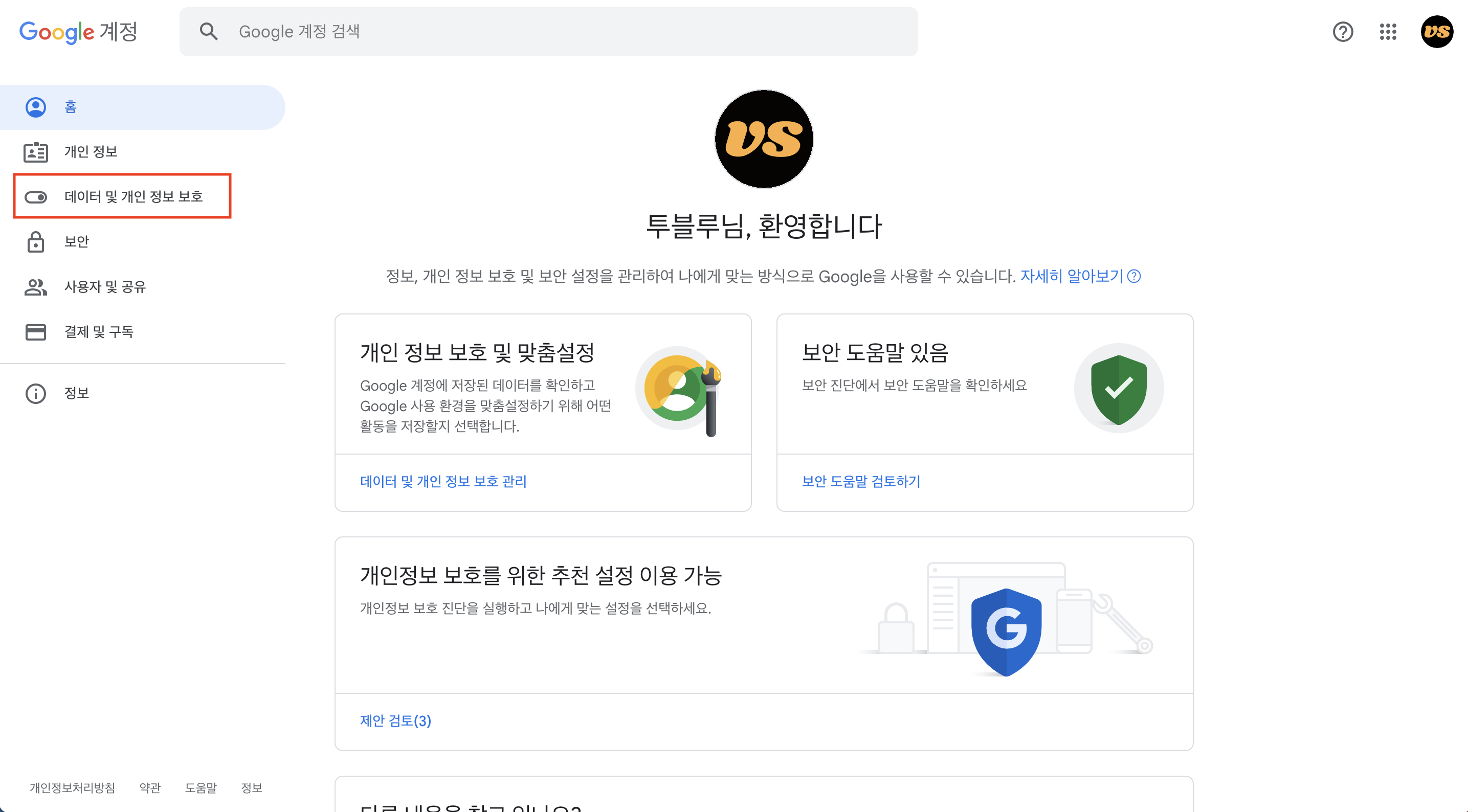
Click on Data of the Apps and Services in Use
Scroll down to find the "Data of the Apps and Services in Use" menu, and here all services that have been granted access permissions are listed.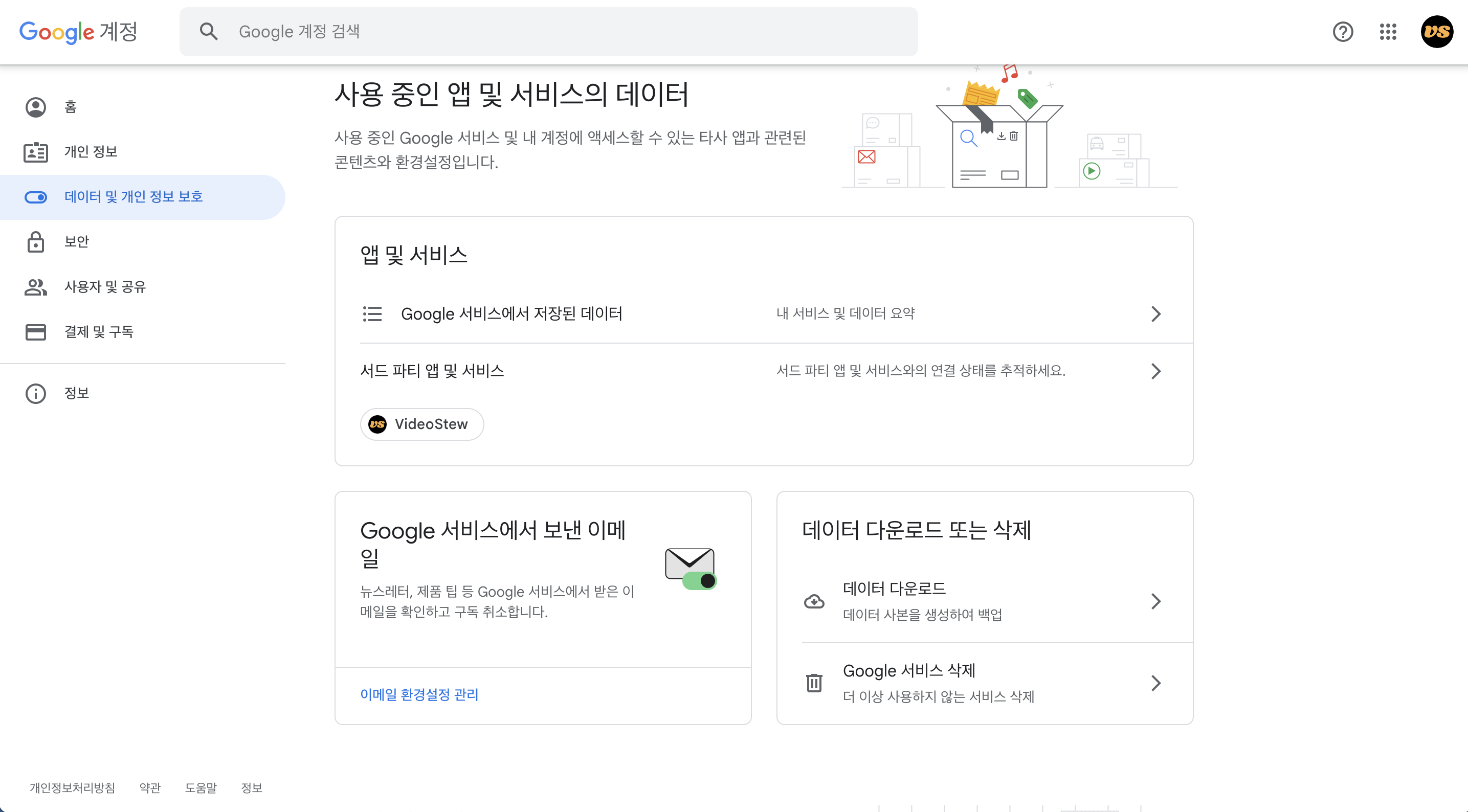
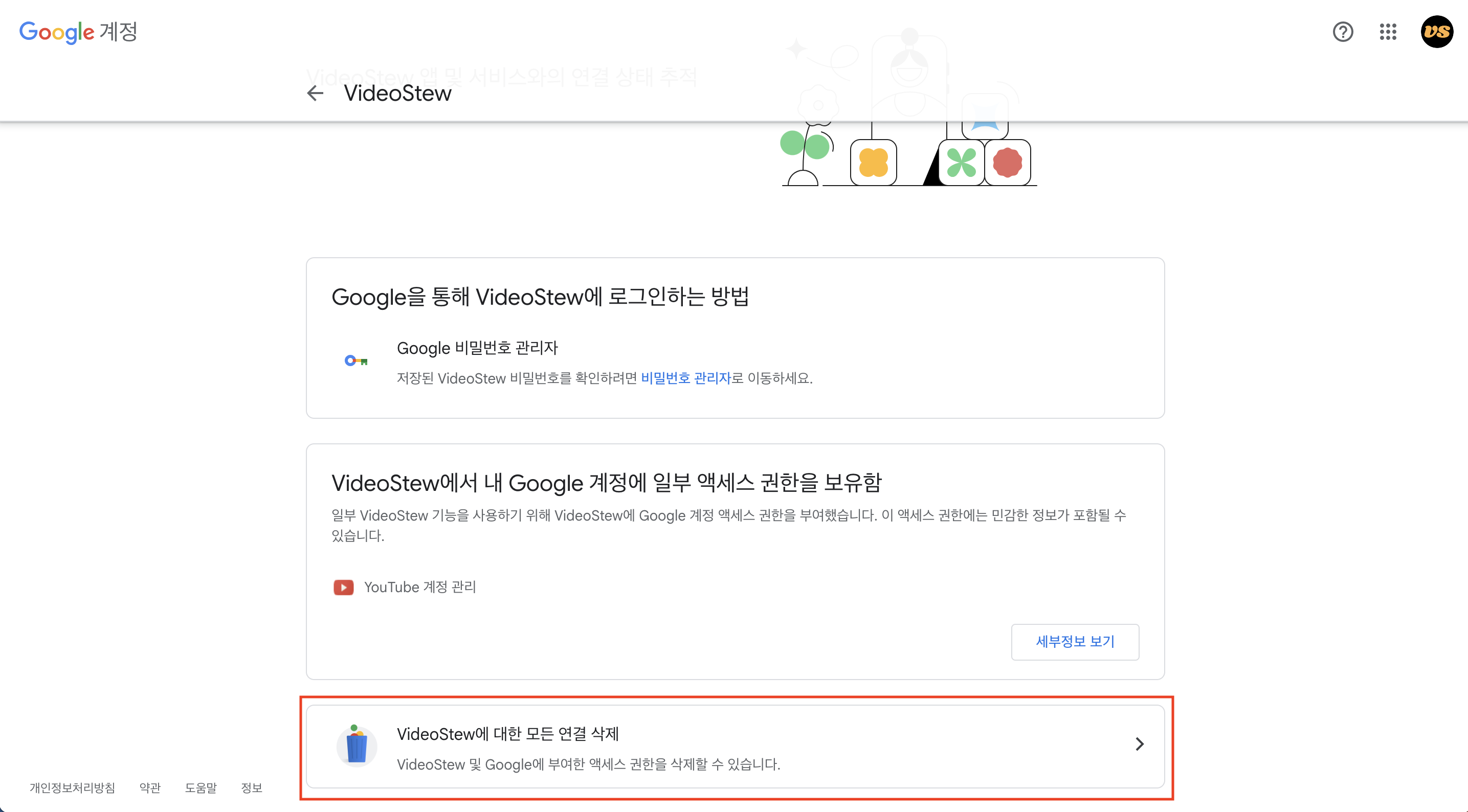
Delete All Connections to Videostew in Third-Party App Services
Find Videostew and select it. Then, by clicking on "Delete All Connections to Videostew," you can reset the account linkage.