Guide
Please set the language and AI voice you want to translate into.
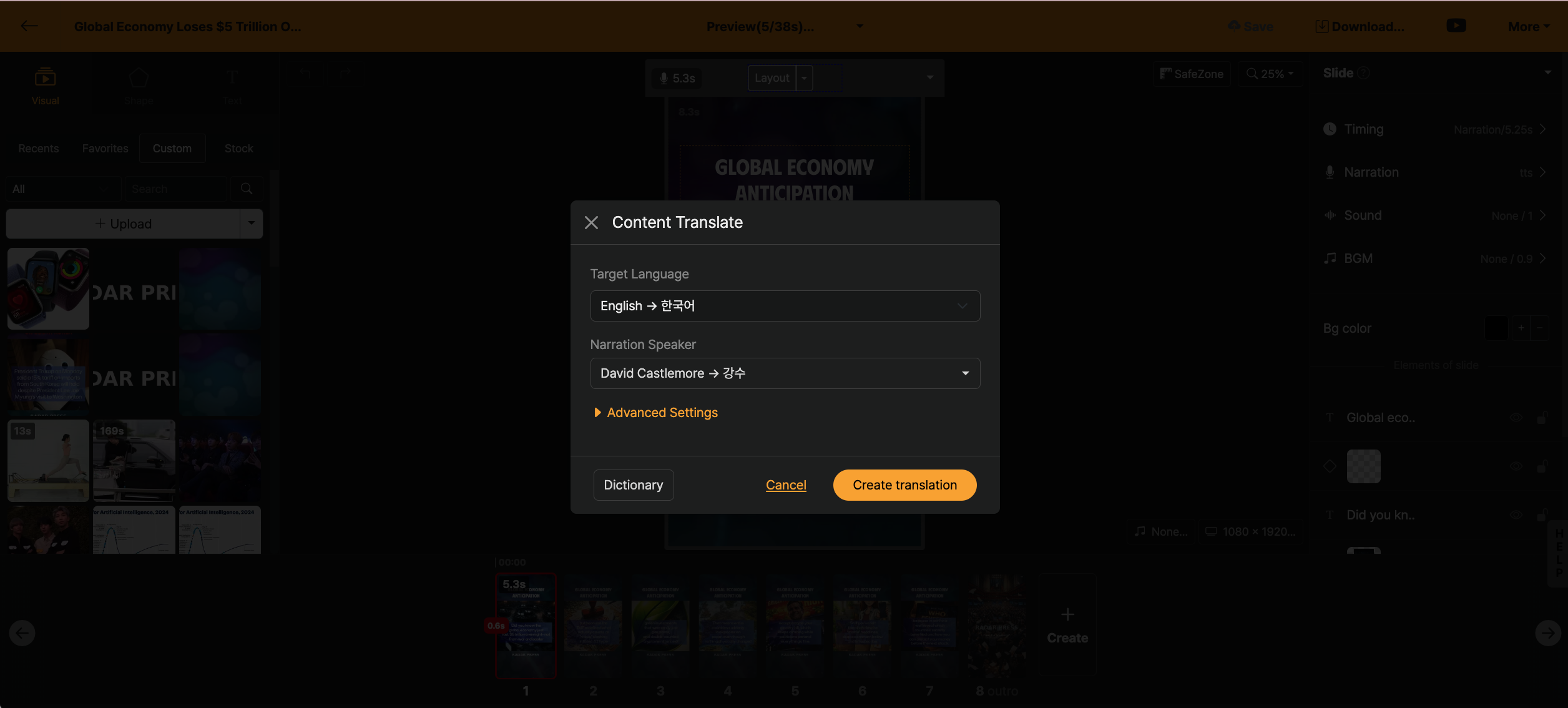
On this screen, you can see the current project's language and AI voice, and directly specify the language to translate into and the AI voice to use.
Even if you only set up to here, the content of the project you are working on will be translated as it is.
Translation detail settings
Through the "고급 설정" feature, you can set the project to be translated in more detail.
Change font
You can see a list of all fonts used in the project, and directly specify the replacement font for each font.
Area-specific settings
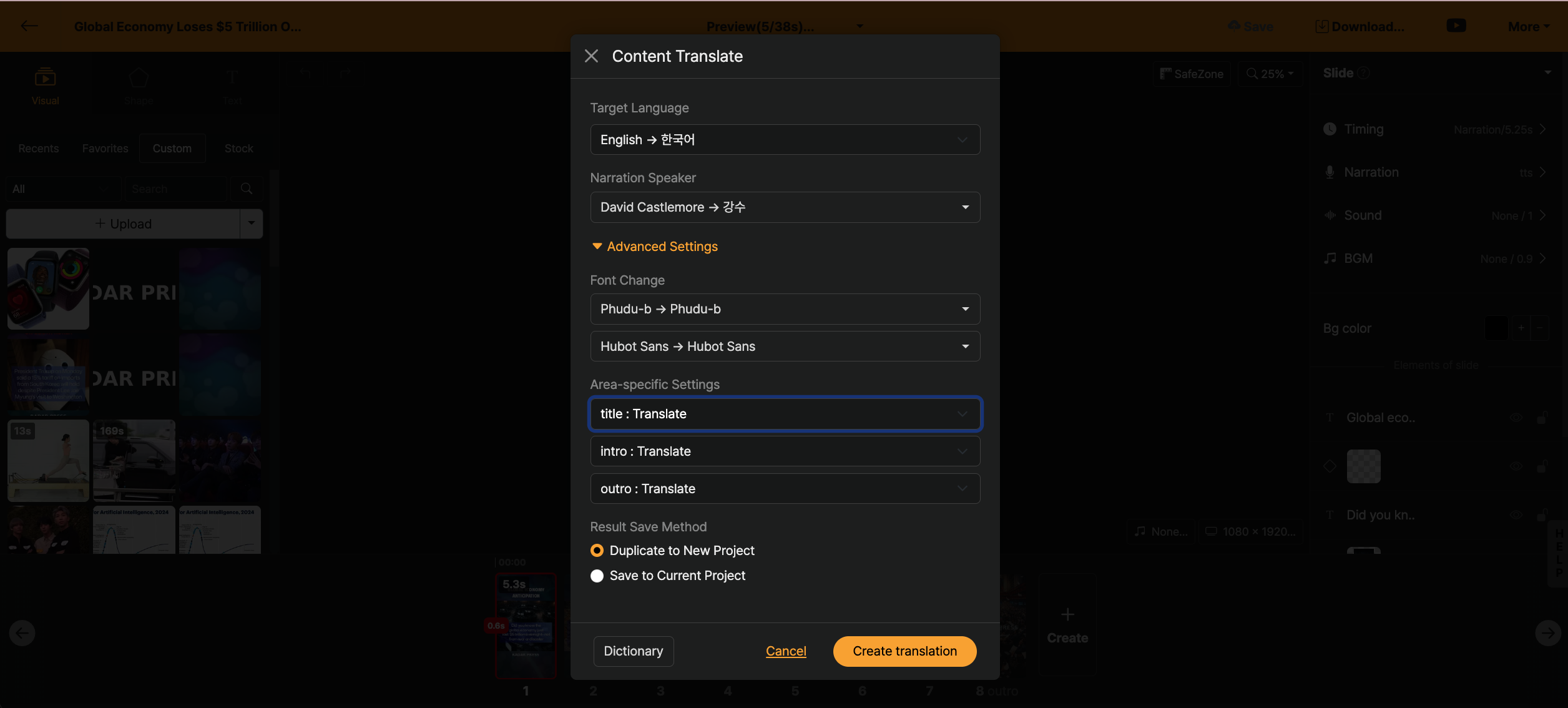
If it is a template created based on [나만의 템플릿], you can directly set whether to translate each slide. Also, you can replace each slide layout with a specific template.
For example, if you created a project in Korean and want to translate it into English but the design gets broken due to automatic translation, you can prepare a well-designed English template in advance and use the intro, outro of this template.
How to save the result
- Copy to a new project: Copy the translated content to a new project.
- Save to current project: Replace the current project with the translated content.
