
Junwoo
2026-02-04 13:23:08
Tutorial
Whip Up ‘Econ-101’ Reels in a Flash—With AI-Generated Images on the Side 🤑✨
📖
Whip Up ‘Econ-101’ Reels in a Flash—With AI-Generated Images on the Side 🤑✨
When you're whipping up a video, which step eats up the most time?Scripting is tough, sure—but the real buzzkill is often the image hunt. You know the feeling: ...
📖
Ring in 2026 Lunar New Year with a snazzy video greeting template—no firecrackers required! 🧧
Hey there! 🐉 2026 is charging in on a fiery red horse, and Lunar New Year is almost here. From everyone at Videostew, may your year overflow with good fortune, ...
📖
Instantly Transform Real Estate Listings into Promotional Videos
If you're a real estate agent creating promotional posts for properties on Naver Blog, why not easily manage a YouTube channel too with this method?With Videost...
📖
How to Automatically Convert News Articles into Short-form Videos: A Guide to Using Videostew
Why Media Outlets are Diving into Short-form VideosRecent statistics reveal that videos under a minute are gaining explosive attention on social media and mobil...
📖
Video Content Strategy to Conquer Naver Short Clips and Coupang Shorts at Once
These days, many people are taking an interest in and challenging themselves with short clips on Naver Shopping Live and Coupang Shorts.In this post, we will di...
📖
Create Your Christmas Greetings and Video Cards in a Snap with Generative AI
Welcome to the holiday cheer of 2023! Here at VideoStew, we're bringing you the simplest way to craft a Christmas greeting video that's sure to spread joy.Gener...
📖
Creating English Conversation Learning Videos using AI Voice and Movie Clips (English shadowing video)
Have you watched a lot of shorts videos teaching useful English expressions?<iframe src="https://www.youtube.com/embed/CzBwBVoTz-4" allowfullscreen=""><...
📖
Send Mid-Autumn Greetings with a Chuseok Illustration Video Template 🌕
Hey there, global creators! The Mid-Autumn Festival—Korea’s Thanksgiving—is just around the corner. 🌕 From everyone at Videostew, we wish you a peaceful harvest...

When you're whipping up a video, which step eats up the most time?
Scripting is tough, sure—but the real buzzkill is often the image hunt. You know the feeling: cursor frozen, endless tabs open, “Where’s the perfect shot for Scene 3?”
Good news: Videostew’s Wizard Mode now cooks up AI images on the spot.
In this post we’ll walk through the entire assembly line:
We’ll show the actual workflow, no smoke and mirrors.
Prefer watching? The video guide below has you covered.
Today’s example: a 60-second “ETF econ-hack” short
We’re turning dry ETF facts into a punchy, gossip-style short. Think “dinner-table story,” not lecture hall.
Step 1: Kick off a Short-form project
From the Videostew dashboard, choose “Short-form”.
Your script is the secret sauce, so spend time on it—yet even the [Start with Idea] button can spin up a smooth, binge-worthy narrative all by itself.
When you start with an idea, you can even pick the vibe of the script. For this demo we’ll go with a YouTube-friendly, info-packed style—think "edutainment" that doesn’t put viewers to sleep. 😉
Step 2: Drop a hint in the reference box and let the AI do the typing
The reference box isn’t mandatory, but a couple of breadcrumbs will steer the script exactly where you want it.
Hit “Generate,” grab a sip of coffee, and—boom—fresh script served. You can edit it right away, just like any text doc. Remember: let AI bang out the first draft, then you sprinkle the human magic on top. That’s peak productivity.
Step 3: Pick a template, lock in the mood
Script looks good? Time to dress it up.
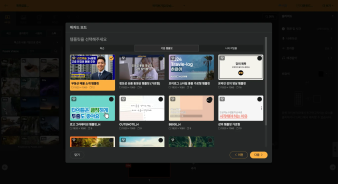
We’ll roll with the “Story-time” template in this demo. Once you choose a template, layouts, colors, fonts—everything—snap into place like LEGO bricks. Translation: no more "why does my video look like a ransom note?" moments.
Pro-tip: once you’re hooked, build your own branded template with [My Template] and just keep swapping in new scripts. Check the guide for the full how-to.
Step 4: Swap visuals for AI-generated images—watch the scenes fill themselves
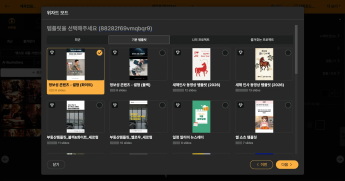
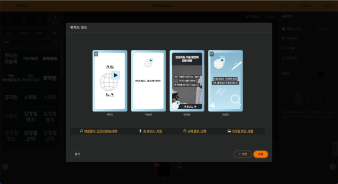
On the final settings screen, switch the Visual Type to "AI Generated."
You’ll now see a choice between illustration and photo styles—pick whichever floats your boat. Our GPT-Image-1.5 engine then reads your script like a book and spits out context-perfect scenes, cranking your video’s wow-factor to eleven.
Quick heads-up, though:
While these AI images are pure eye-candy, they do nibble at your credits. The good news? Once an image is born, you can reuse it forever, so go wild with the testing.
Step 5: Preview the flow, fix pronunciation hiccups with the “Custom Dictionary”
After auto-generation, hit Live Preview to watch your masterpiece in real time.
In the demo, the AI mumbled “KODEX” like it was sneezing—awkward, right?
Pop open the Custom Dictionary, feed it the correct pronunciation, and voilà—problem solved.
Heads-up: the dictionary is stored per workspace, so once you’ve cataloged all the lingo your brand loves, every future project becomes that much breezier.
Step 6: Save, Render, and Off You Go—MP4 or Straight to YouTube
When you’re happy with the edit, hit save, then smash that download button to kick off the render.
Once the render wraps, you can grab the MP4 or tap the YouTube icon and upload in one click.
And because Videostew auto-magically writes your project info (title, description, hashtags) and ships it over to YouTube, publishing feels less like a chore and more like a victory lap.
Bonus Round: This Entire Flow Can Be 100 % API-Automated
Everything we just did inside the SaaS? Some teams skip the clicks and wire the same pipeline straight into their backend via API.
Picture this:
We usually demo short-form, but Videostew handles horizontal long-form just as smoothly (
it’s literally the same workflow—just pick a landscape template).In the next post we’ll walk through hooking the Videostew API to n8n and running a fully hands-off YouTube channel. Stay tuned!