Guide
Create AI Image
The media library includes a feature that allows you to add AI images. It automatically generates background images based on the content entered for each slide.
You can generate AI images in various styles such as realistic, digital art, vector, flat, contemporary illustration, watercolor style, and more.
Selecting AI Image Categories
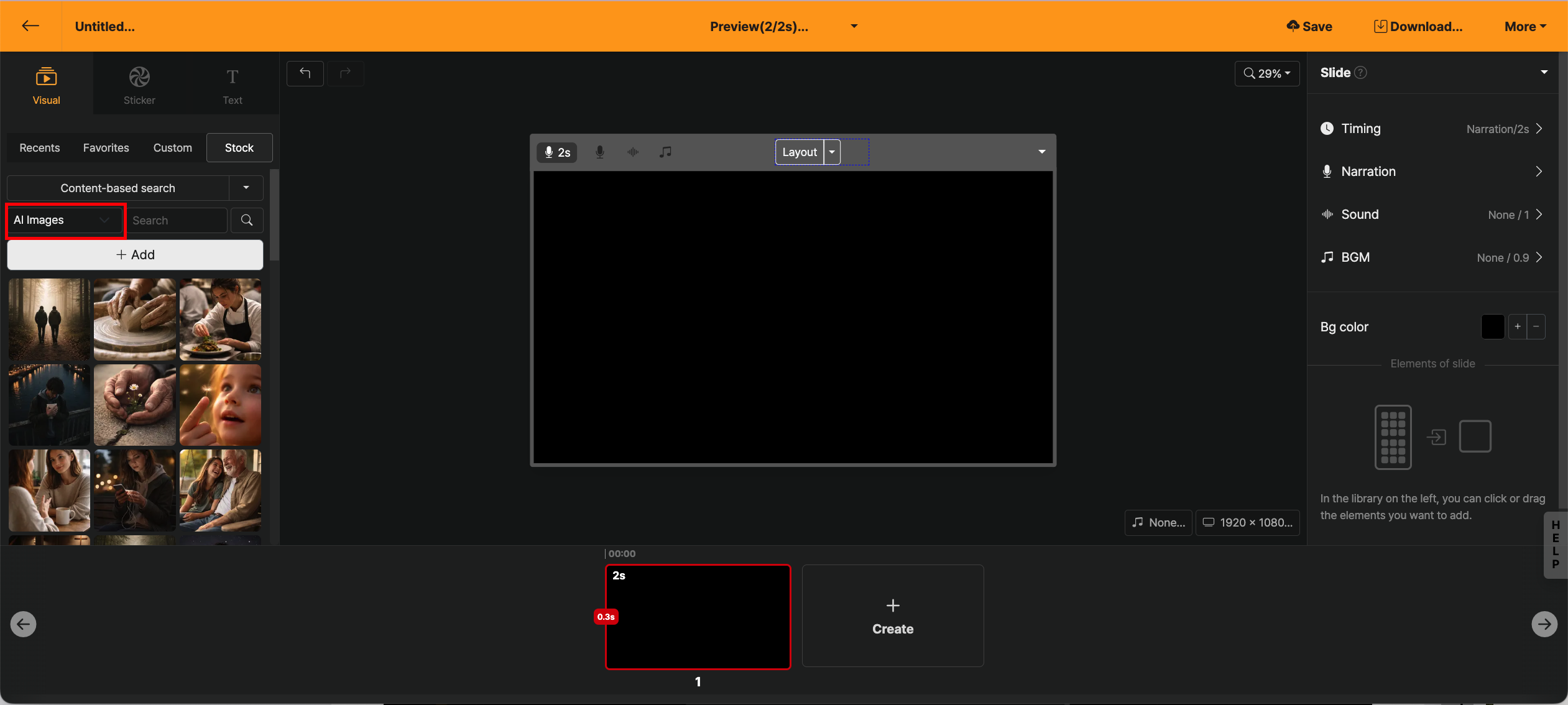
< Selecting AI images from the category panel on the left >
By default, categories pull stock libraries from Pexels or Pixabay. Click the category search button to select AI images.
Add AI Image
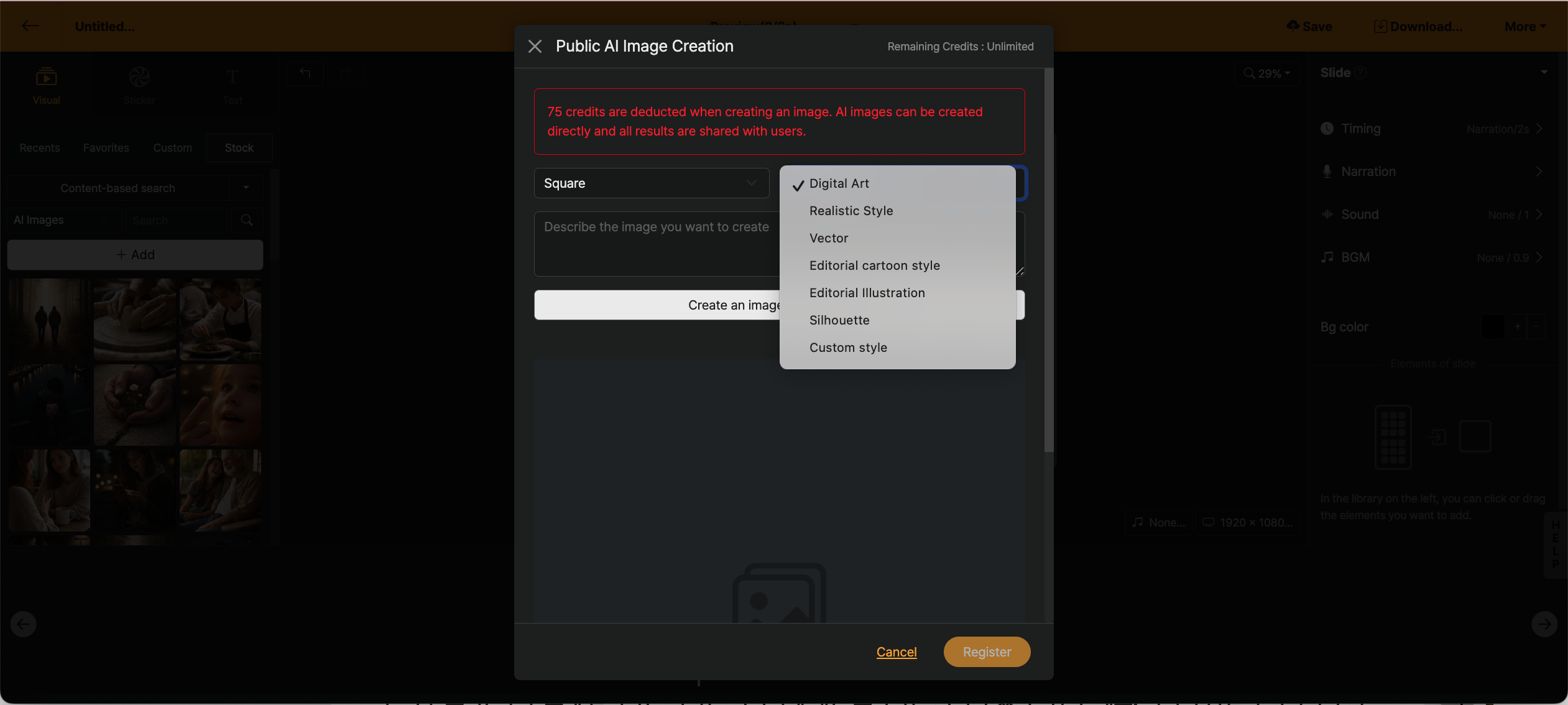
< Add public AI image window >
When you press the + Add button, a modal window appears to add AI images. By default, if there is a text block entered within the slide, the text will be fetched.
The size of the image to be added can be selected from square, horizontal, and vertical, with the default value being square. (It is recommended to add in square format.)
Videostew’s AI image-addition feature is provided so that anyone can use prompts easily. Normally, images that many people create for their content are quite different from the images they want; to add the highest-quality images, you have to refine the prompt yourself, and that makes high-quality AI image generation possible.
Creating New Visuals from Placed Images
If you double-click an image placed on a slide, you can immediately start three AI actions from the Select Action window.
| Action | Description |
|---|---|
Transform Based on Image |
References the currently visible image and creates a new image modified according to your entered description. You can change people, background, season, color tone, art style, and more. |
Generate New from Content |
Creates a completely new image based on the subtitles of the selected slide without referencing the original image. If you select multiple slides together, the corresponding image elements on each slide can also be replaced at once. |
Create as Video |
Uses the current image as the first scene to create an animated video. Generate it after specifying the motion description and resolution. |
The Generate button in the properties panel on the right opens Generate New from Content by default. This is the fastest way to get started when you need a new image or a new video.
Transform Based on Image
If you want to keep the composition or subject and only change part of it, select Transform Based on Image. Just write down the parts you want to change, such as "Change background to night", "Change Korean model to a foreign model", or "Change to a winter scene with the same composition".
At the top of the Editing Window, you can also select a style. 원본 스타일 maintains the current image's art style, and choosing one among Photo, Digital Art, Vector, Editorial Cartoon, Newspaper Illustration, or Silhouette will redraw it in the selected art style. For art styles not on the list, you can write them directly in 사용자 지정.
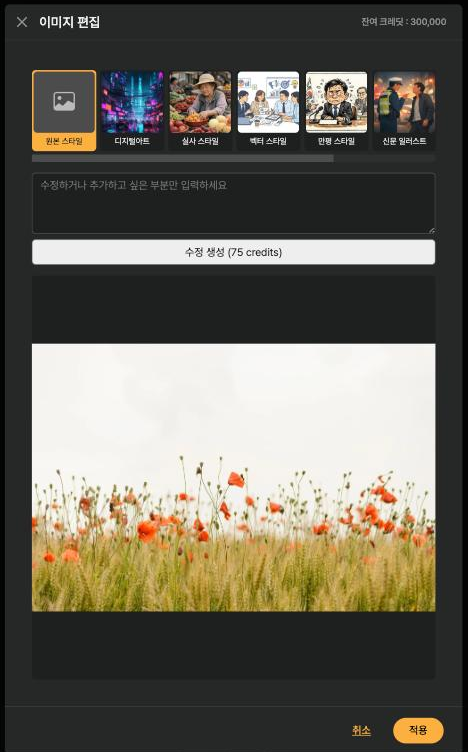
< Style Picker in the Image Editing Window >
You can leave the edit prompt blank. If you generate just by changing the style, you can change the art style while maintaining the composition and subject. However, due to the nature of generative AI, people, logos, small text, and detailed compositions may change, so please check the result.
You can use this not only for AI-generated images, but also for uploaded photos or stock images. The original is not overwritten, and the result is added as a new library item.
내용기반 신규 생성
If you need a completely different scene from the existing image, select 내용기반 신규 생성. The subtitles of the selected slide are automatically populated into the prompt, and you can generate it after adding your desired style or description. The 생성 button in the right properties panel also opens this screen directly.
이미지를 비디오로 만들기
To make a still image move, select 비디오로 만들기. Choose a resolution and enter the desired movement, such as "Camera slowly moves forward" or "Person naturally turns their head", and an image-based video will be generated. You can still generate even if you leave the description blank, but briefly specifying the subject and camera movement makes it easier to get results close to your intention.
You can preview the generated video before applying it to the slide. The AI credits displayed on the screen will be used for image and video generation.
When modifying photos containing people or trademarks, please refer to the AI Image Copyright guide for important considerations.
AI Image Search
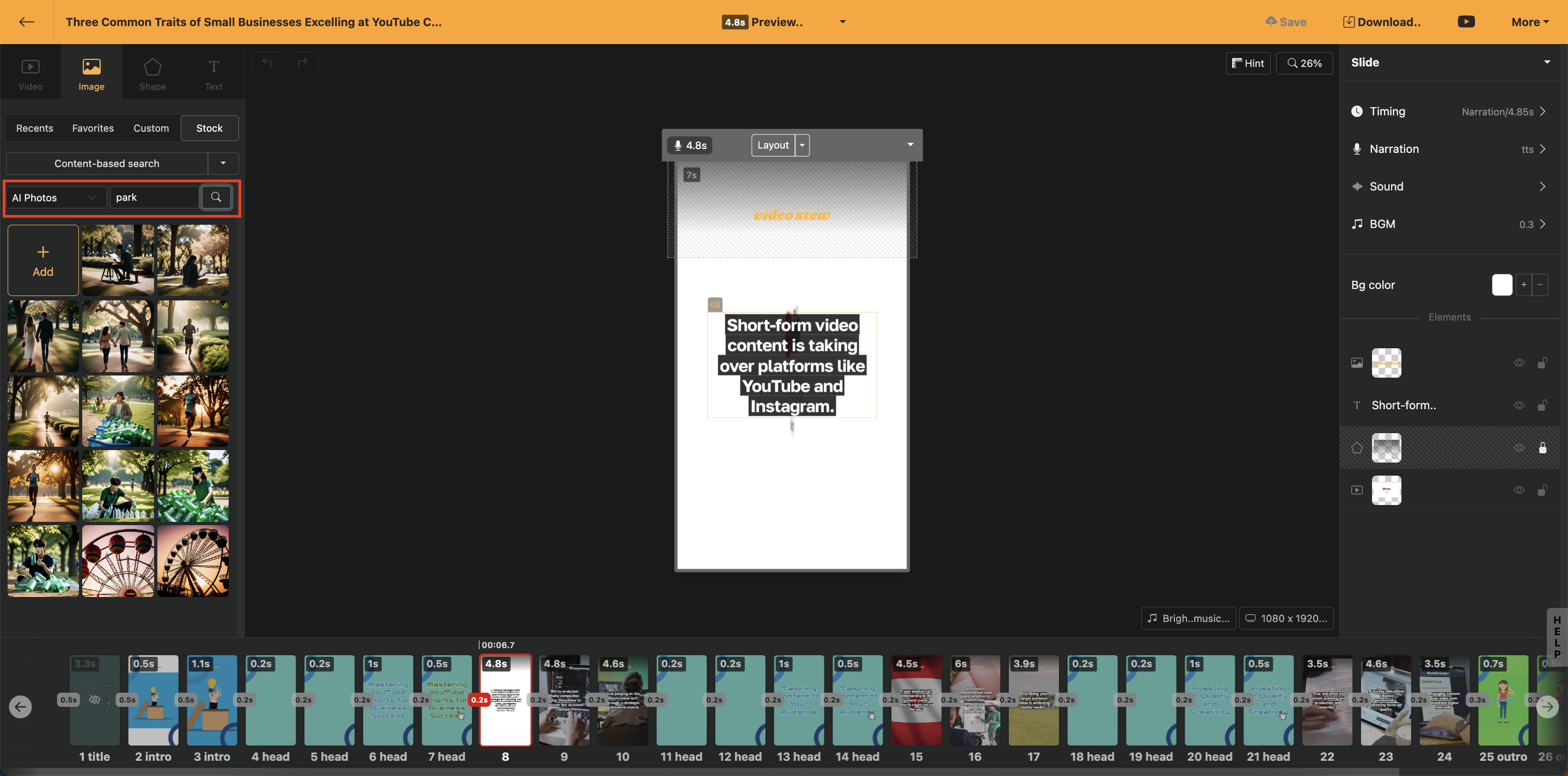
< Search AI Image Library >
All AI images added by Videostew users are converted into a searchable format and stored in the public library. When you enter a search term, the newly added AI images appear in the list, and you can drag and drop them into the slide from the [library].
Copyright for AI images added in Videostew can be checked in detail in the AI Image Copyright guide document.
Create Similar Style
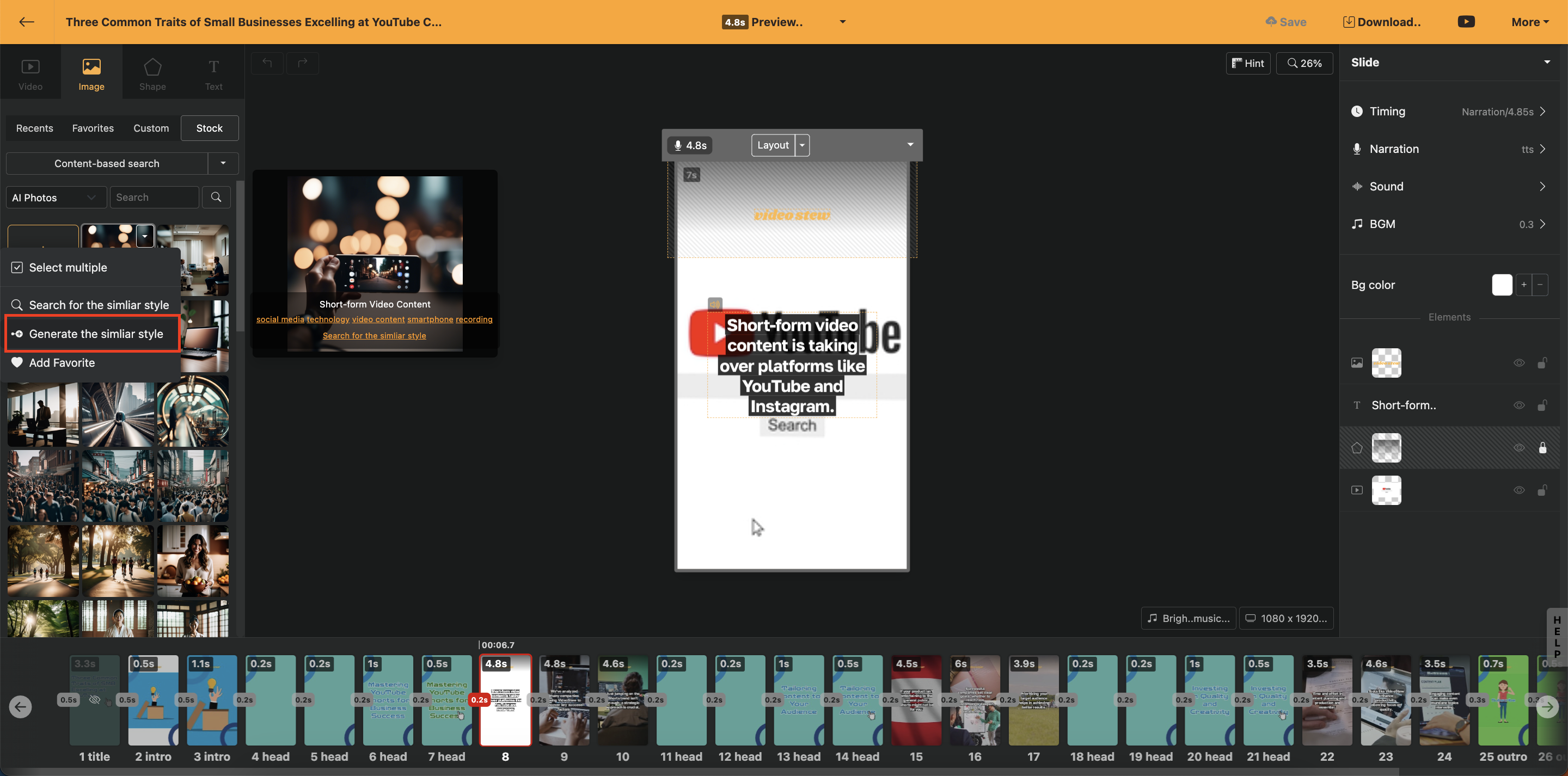
< Add as Similar Style >
If there is an image you like in the public AI image library, you can click the "Mouse Right Click > Create Similar Style" button to add a similar image. You can also briefly describe the idea you want to add in the text input window, allowing you to add an image that more closely matches the situation you are thinking of.
